
How to add interactive plans to your site
There are 3 popular methods used to add Interactive Floor Plans or Interactive Site Plans to your web page, blog, email or other media: Image Link, Text / Button Link, or placing the plan inside a container (such as an iframe). Below are simple examples of each method, plus copy‑and‑paste code samples.
Quick Start (most websites)
- Decide if you want visitors to open the plan in a new tab (link) or see it directly on the page (embed/iframe).
- Copy the example that matches what you want (Image Link, Button Link, or Embedded iframe).
- Replace the demo URL (
https://contradovip.com/vip/) with the plan URL provided to you.
Using WordPress?
If WordPress asks for an embed code or HTML, use the “Embed code for WordPress” sample below.
- Edit the page in WordPress where you want the interactive plan.
- Click the + button, search for Custom HTML (or Code), and add that block.
- Paste the embed code from this page into that block, then click Preview to make sure the plan appears.
Tip: If your WordPress theme or builder has its own “HTML” or “Embed” widget, you can paste the same code there.
Create your embed code
Paste your interactive plan URL below and we will generate a ready‑to‑use embed code (iframe) you can paste into WordPress or another website.
Image Link (opens in new tab)
Clicking the floor plan image below will open the plan in a new tab. This works on almost every platform, including WordPress, Squarespace and and others.
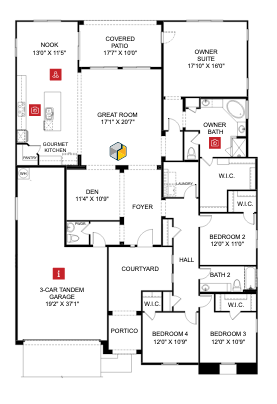
<!-- Replace the demo URL https://contradovip.com/vip/ with the plan URL provided to you -->
<a href="https://contradovip.com/vip/" target="_blank">
	<img src="images/floor-plan-sample-image.png" alt="Interactive floor plan">
</a>
In WordPress, you can also insert an Image block, select your image, and set the link URL to your plan URL instead of using an embed code.
Call to Action Button (opens in new tab)
Clicking the following button will open the plan in a new tab. This is a good option when you want a clear “View Plan” call‑to‑action.
<!-- Replace the demo URL https://contradovip.com/vip/ with the plan URL provided to you -->
<a href="https://contradovip.com/vip/" target="_blank" class="btn btn-cta btn-lg">
	View Interactive Floor Plan
</a>
In WordPress, you can use a regular Button block and set the button link to your plan URL.
Embedded Hybrid
Desktop: iframe / Mobile: New Tab
A hybrid embedded solution offers the best on‑page experience for desktop and laptop users without sacrificing usability on mobile. On larger screens, the plan is embedded in an iframe. On smaller screens, visitors see an image and button that open the plan in a new tab.
This approach is ideal for WordPress and other CMS platforms where you want the plan visible on the page but still easy to use on phones.
/* IMPORTANT: Interactive plans automatically resize to fit within
   the object containing them. In most cases, it is recommended that
   the iframe (or other container) be given width:100% and a height
   that works well for your layout (for example, 600-800px). */

/* Note the CSS media query which switches between the embedded iframe
   and the alternative small-screen graphic and button. The 768px
   max-width below is only for demonstration. Adjust as needed. */

.small-screen-only {
	display: none;
}

@media (max-width: 768px) {
	.iframe-container iframe {
		display: none;
	}

	iframe.code-sample-iframe {
		display: none;
		visibility: collapse;
	}

	.small-screen-only {
		display: block;
	}
}
<div class="iframe-container">
<iframe
class="code-sample-iframe"
src="https://contradovip.com/vip/?hd=0&op=2"
frameborder="0"
loading="lazy"
allowfullscreen
style="width:100%; height:600px; border:0;">
</iframe>
</div>
<div class="small-screen-only">
<a href="https://contradovip.com/vip/" target="_blank">
<img src="images/floor-plan-small-screen-image.png" alt="Interactive floor plan">
</a>
<div>
<a href="https://contradovip.com/vip/" target="_blank" class="btn btn-cta btn-lg">
View Interactive Floor Plan
</a>
</div>
</div>Embed code for WordPress (copy & paste)
If your site uses WordPress (or any CMS that asks for “embed code”), copy this iframe into a Custom HTML block or HTML/Embed widget, then replace the URL with the plan link provided to you.
<iframe
	src="https://contradovip.com/vip/?hd=0&op=2"
	width="100%"
	height="600"
	style="border:0;"
	loading="lazy"
	allowfullscreen>
</iframe>
Query String Layout Modifications
Interactive Floor Plans and Site Plans can be modified by adding a query string to the end of a URL. These settings can be set on a plan‑by‑plan basis or globally (just ask your Outhouse Account Manager to make any of these settings global).
Add any of the following to a plan URL to modify its appearance:
Header
hd=1 = Display Header (default)
hd=0 = Remove Header
Options Drawer
op=2 = Options Drawer – Initially Expanded (default)
op=1 = Options Drawer – Initially Collapsed
op=3 = Options Drawer – Initially Collapsed and opens after delay
Tool Bar
tl=2 = Tool Bar – Expanded (default)
tl=1 = Tool Bar – Collapsed
Footer
ft=0 = Remove Footer – (default)
ft=1 = Footer – Initially Collapsed
ft=2 = Footer – Initially Expanded
/* Below are some examples of a standard URL and those modified via query string */

/* Standard plan URL (unmodified) */
https://contradovip.com/vip/

/* Remove Header */
https://contradovip.com/vip/?hd=0

/* Options Drawer Initially Collapsed */
https://contradovip.com/vip/?op=1

/* To use multiple conditions the first field-value pair is preceded by "?"
   and additional field-value pairs are preceded by "&" between each pair.
   EX: https://contradovip.com/vip/?field1=value1&field2=value2&field3=value3 */

/* Remove Header AND Options Drawer Initially Collapsed */
https://contradovip.com/vip/?hd=0&op=1

/* Remove Header AND Options Drawer Initially Collapsed and opens after delay */
https://contradovip.com/vip/?hd=0&op=3